
Desktop App
The desktop app is a native shell around the Stib workspace. It does not replace Stib Server: install or reach a server first, then connect the app to its URL.
Download
Get the current release from stib.ai/download.
| Platform | Available packages |
|---|---|
| macOS Apple Silicon | DMG or PKG |
| Windows x64, x86, ARM64 | EXE or MSI |
| Linux x64, ARM64 | DEB or RPM |
No AppImage is currently produced.
Install
macOS
- Open the DMG and move Stib to Applications, or run the PKG installer.
- The published application is signed and notarized. If macOS still blocks it, verify that it came from the official download page before using Privacy & Security → Open Anyway.
Windows
- Run the EXE or MSI matching the machine architecture.
- If SmartScreen appears, verify the publisher and source before continuing.
Linux
# Debian or Ubuntu
sudo apt install ./stib-desktop-*.deb

# Fedora or another RPM-based distribution
sudo dnf install ./stib-desktop-*.rpm
Package names include the version and architecture; use the exact downloaded filename.
First connection
Enter an HTTP or HTTPS server origin, without an /api suffix. Select Test, then Connect.
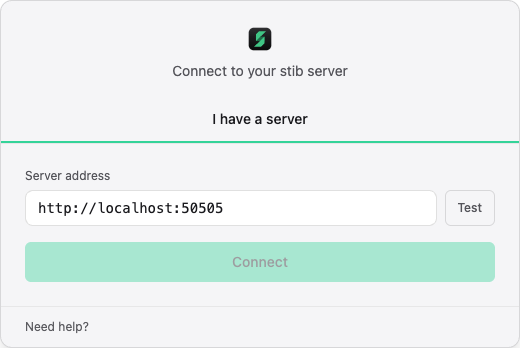
For a native server on the same machine, try http://localhost:50505. If that port was occupied at server startup, Stib Server can bind to 50506 through 50514 or an OS-assigned port. The desktop app can discover the actual local port from the server's port.txt file.
Desktop-only capabilities
Compared with a browser tab, the desktop app adds:
- native editor and terminal discovery, including custom executable paths;
- opening project files, repositories, and terminals from Stib;
- conversation pop-out windows;
- a preview window with responsive sizes, developer tools, console/performance feedback, component selection, and screenshot capture;
- native attachment downloads and ZIP export;
- desktop log export and reveal-in-file-manager actions;
- native theme integration and signed automatic application updates.
These features still operate on repositories visible to the server. If the server is remote, a local editor cannot open a server-only filesystem path unless that path also exists locally.
Updating
On macOS and Windows, the desktop app checks the signed release manifest for its channel. When an update is offered, follow the in-app flow. Linux packages are not present in the desktop updater manifest: install the newer DEB or RPM through the package manager instead.
Desktop and server versions are checked for compatibility, but they are updated separately. You can also install a newer official desktop package over the existing application.
Uninstalling
Use the normal application removal flow for your operating system. Removing the desktop client does not delete the server database, repositories, or attachments.
Next: Quick Start and Desktop Features.