
Cards
A card is both a work item and the durable home of its agent sessions, messages, files, Git state, comments, and history.
Create a card
Select New card or the plus button in a column. The prompt is the agent's objective; the title is optional and can be generated from that prompt.
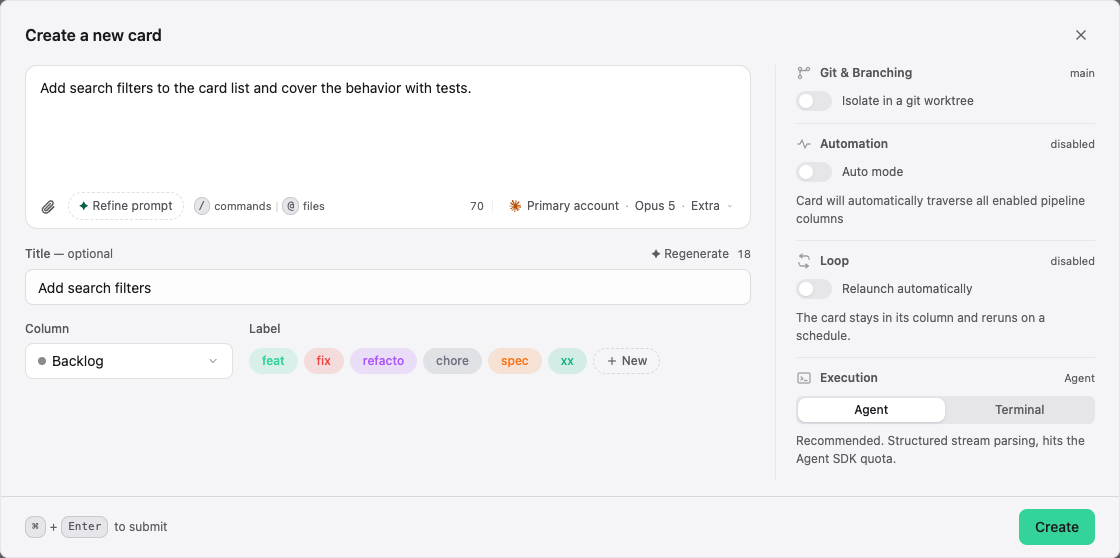
The creation dialog can configure:
- destination column and labels;
- credential, provider agent, model, and reasoning effort;
- main repository or an isolated Git worktree and custom branch;
- Auto mode and per-card pipeline choices;
- a scheduled Loop that relaunches the card in place;
- structured Agent execution or interactive Terminal execution.
Use attachments for required input files. Use @ file mentions and / commands or skills when the selected agent supports them. Never paste a password or token into the normal prompt; use the masked secret action inside the conversation.
Write an effective prompt
State the desired outcome, important constraints, relevant files or components, and how completion should be verified. Avoid prescribing implementation details that are not actually required. A good card lets the agent inspect the repository before committing to a plan.
Open and follow work
Select a card to open its panel. The main tabs are:
- Conversation — user messages, agent output, tool calls, questions, and composer;
- Diff — files changed by the active worktree or repository;
- History — sessions and important card events.
The header exposes the current status/column, execution controls, and more actions. Several card panels can be open at once, subject to the user's panel limit and available width.
Status and activation
Typical runtime states include idle, running, waiting for input, completed, failed, and cancelled. A column move and a runtime status are different concepts: a completed session does not necessarily move the card unless Auto mode or an automation says so.
You can activate deferred work, cancel a running agent, retry a failed/completed session, send another message, or move the card. Controls are disabled when a lock, permission, or incompatible state makes the action unsafe.
Move, archive, and delete
Drag cards between columns or use card actions. Moving into an active column may start work; moving out can pause, resume, reset context, clean a worktree, archive, or fire hooks depending on column settings.
Archive hides completed work without deleting its history. Deleted cards enter the project trash when retention is enabled and can be restored until permanent deletion. Check the project's retention policy before relying on trash as a backup.
External and project-agent cards
Integrations can import external issues as linked cards. Some boards also display project-agent work alongside Kanban cards. Their available actions and source-of-truth fields can differ; Stib shows integration state and sync errors rather than silently overwriting unsupported changes.
Next: Agents, Pipeline, and Git Integration.