
Kanban Board
A project can contain several boards. Each board has its own columns, default agent/model, optional external integration, and saved display state.
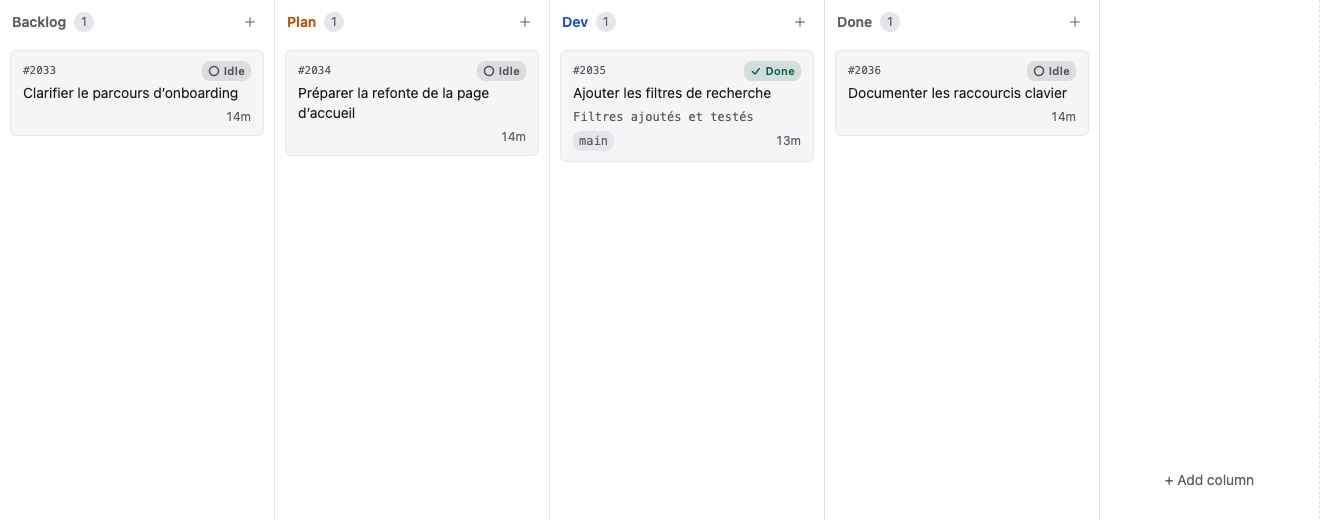
Navigate the workspace
- Use the organization selector at the top to change scope.
- Use the left sidebar to open a project or create one.
- Use the board selector in the project header to switch boards.
- Open Views to save or reuse cross-project filters and layouts.
- Open Agents or press the configured shortcut (default display:
⌘Jon macOS) to review active and waiting agent conversations.
The bottom bar keeps recently opened cards as tabs. A card conversation can remain open while you move between boards.
Column types
The type is chosen when the column is created and controls what happens when a card enters it.
| Type | Behavior |
|---|---|
| Passive | Holds work without starting an agent; often used for backlog and done states |
| Conversational | Starts an agent with planning/conversation permissions; can pause after a plan or continue after approval |
| Dev | Starts an execution agent with normal development permissions |
| Skill | Runs a specific discovered skill with the card content |
The visible name is independent from the type. A column called “Review” can be passive, conversational, Dev, or Skill depending on the workflow you want.
Configure a column
Open the column menu and select Configure column. Which tabs appear depends on the column type:
- General — name, type, auto-mode action, color, icon, and width;
- Behavior (passive columns) — column role, opening cards in edit mode, actions on entry and exit, header bulk buttons;
- Agent and Automations (other types) — default credential/model and prompt behavior; status conditions, automatic responses and move rules;
- Webhooks — actions fired when cards enter or leave;
- Sort — manual or field-based ordering;
- Advanced — pipeline participation and column deletion;
- History — the column audit log, if your role grants access to it.
Column role
Under Behavior, a passive column is either standard or a product backlog. The choice affects exactly one role: the product owner.
- Standard column — only contributors and admins create, edit, delete or move cards here.
- Product backlog — product owners can too. They can never move a card out of the backlog though: both the source and the target column must be backlogs.
The setting hides nothing: a product owner sees the whole board either way, they are simply read-only elsewhere. The permission table shown under the choice sums it up.
Open cards in edit mode is a separate, purely ergonomic question: when enabled, clicking a card in this column opens its title and prompt instead of the conversation. The product backlog role forces it on, because that is how a product owner writes their cards.
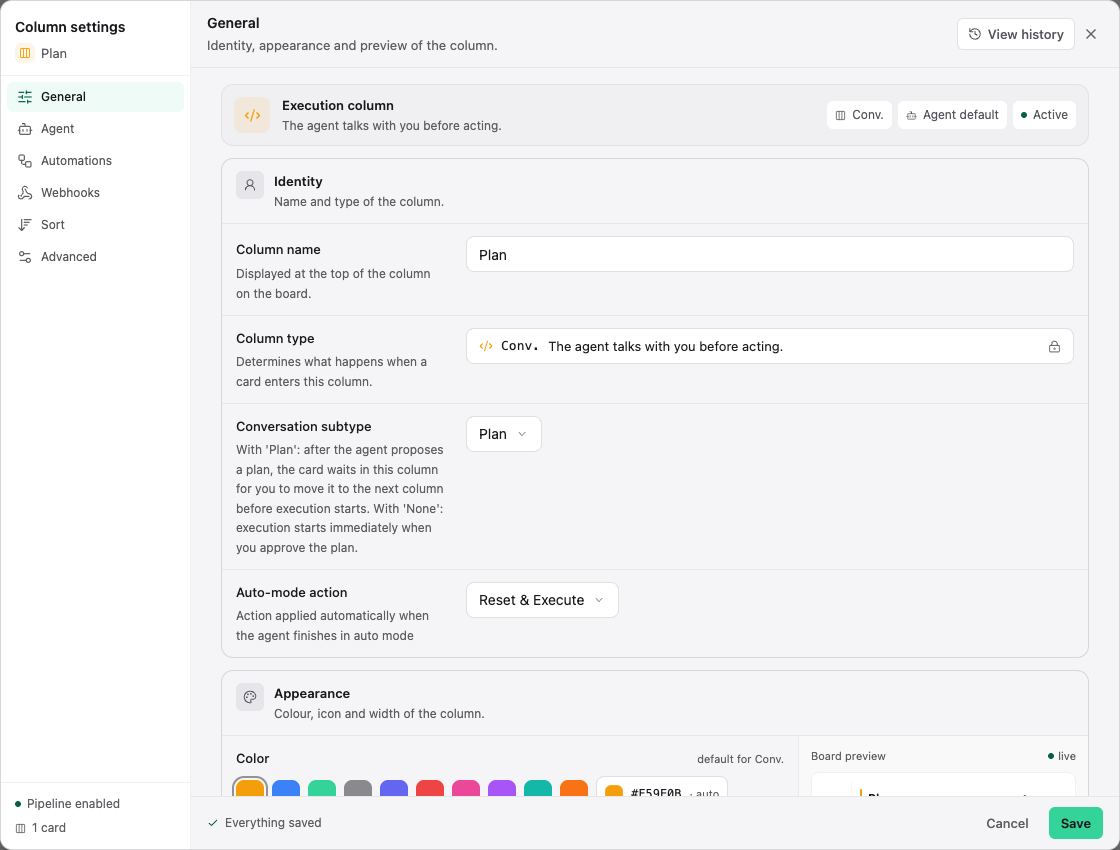
Some settings depend on the type. For example, a Skill column must reference a skill discoverable by the server, and planning actions only apply to the appropriate conversational subtype.
Groups and full-width mode
Columns can contain groups to separate streams of work without creating another board. A group can be collapsed and reordered. Use View full width from a column menu when one stage needs more room.
Board templates and history
Create a board from a server template or build it manually. Project settings let you manage boards; column and board history help explain configuration changes. Deleting or restructuring a board can affect automation and imported external items, so review integration mappings first.