Skip to content

Cards

Cards are the fundamental units of work in Stib. Each card represents a task that flows through your Kanban pipeline — from an idea in the Backlog to a completed result in Done. A card carries a title, an optional prompt for the AI agent, and tracks its own status, pipeline configuration, and Git worktree.

Creating a Card

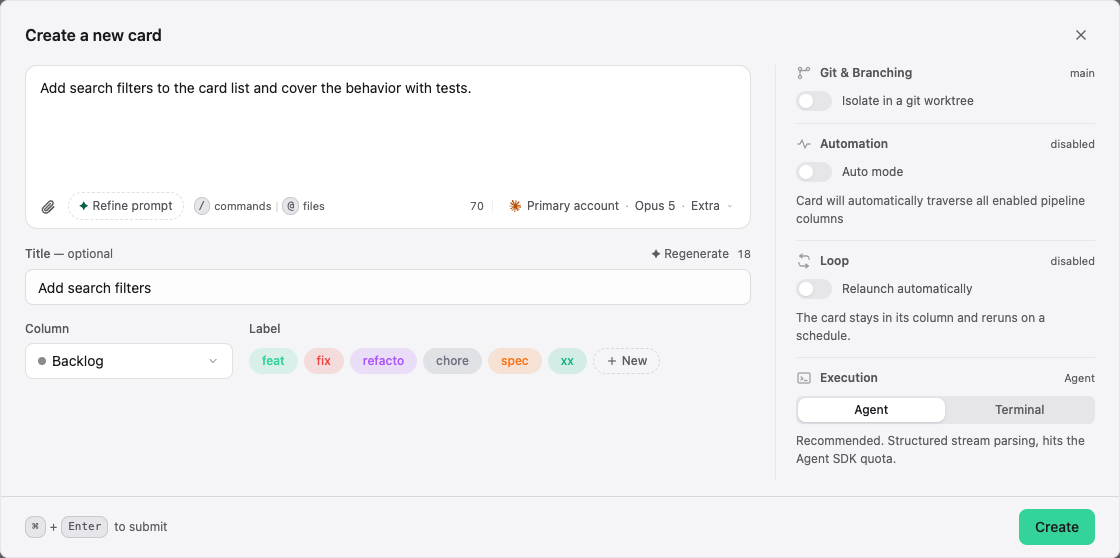
Click the "+" button at the top of any column to open the card creation modal. The following options are available:

OptionRequiredDescription
TitleYesCard name, also used for auto-generated branch naming
PromptNoMarkdown instructions for the AI agent
ColumnYesTarget column where the card will be placed
CredentialNoAPI credentials the agent should use
WorktreeNoToggle to create an isolated Git worktree for this card
Custom branchNoOverride the auto-generated branch name
Auto modeNoEnable automatic pipeline advancement
Skip conversationalNoSkip conversational columns when auto mode is active
Pipeline configNoPer-column enable/disable checkboxes
AttachmentsNoUpload files or images via drag-and-drop or click
Pre-sessionNoUse Claude to refine your prompt before creation

TIP

You can also create cards contextually from a column's header menu, which pre-selects that column as the target.

Writing Effective Prompts

The prompt field supports Markdown and provides two powerful features:

  • @mentions — Reference files, folders, or other resources to give the agent targeted context
  • /slash commands — Invoke built-in CLI skills (e.g., /review, /test) directly in the prompt

Write clear, specific instructions. The more precise your prompt, the better the agent's output will be.

Pre-Session Refinement

Before creating the card, you can use the pre-session feature to refine your prompt with Claude. This opens a conversational exchange where Claude helps you clarify requirements, identify edge cases, and structure your instructions — all before the card enters the pipeline.

Attachments

You can attach files and images to a card:

  • Drag-and-drop files onto the attachment zone in the creation or edit modal
  • Click the attachment zone to browse and select files
  • Paste images directly from your clipboard

Attachments are sent to the agent when the card enters an active column. If attachments are added after the agent has already started, they are queued and included when the agent is next activated.

Card Statuses

Each card displays a status badge that reflects its current state in the pipeline.

StatusVisualDescription
idleCard created but not yet activated (in a passive column)
runningSpinnerAgent is currently processing
successGreen checkAgent completed successfully
errorRed XAgent encountered an error
waitingOrange clockAwaiting user input (conversation or plan approval)

Status Transitions

  • A card starts as idle when placed in a passive column
  • Moving to an active column (conversational, dev, or skill) spawns an agent and sets the status to running
  • The agent sets the status to success, error, or waiting depending on the outcome
  • A waiting card requires user interaction before it can continue

INFO

Status badges are visible directly on the card in the board view, so you can monitor progress at a glance.

Moving Cards

Drag-and-Drop

Drag a card from one column and drop it into another. Visual insertion indicators show where the card will be placed.

  • Cards can be reordered within the same column
  • Cards can be moved to any other column in the pipeline

Column Transition Behaviors

Moving a card between columns triggers specific behaviors depending on the column types:

TransitionBehavior
Passive → ActiveAgent spawns automatically; prompt enriched with unlinked attachments
Active → DoneWorktree cleaned up if present
Done → Any columnStatus resets; worktree recreated from branch if available
Any moveRecorded as a system message in the agent session history

WARNING

Moving a card to an active column will start an agent immediately. Make sure the card's prompt and configuration are ready before moving.

Pipeline Configuration

Each card can customize which columns are included in its pipeline. This gives you fine-grained control over how a card flows through the board.

Per-Card Pipeline

In the card creation or edit modal, use the pipeline config checkboxes to enable or disable specific columns for this card. Disabled columns are skipped during automatic advancement.

Auto Mode

When auto mode is enabled on a card, the card advances automatically through the pipeline without manual intervention:

  • After an agent completes in a dev or skill column, the card moves to the next enabled column
  • Conversational columns pause and wait for user approval before advancing

Skip Conversational

When both auto mode and skip conversational are enabled, the card bypasses conversational columns entirely during automatic advancement. This is useful for fully automated pipelines where no human review is needed at intermediate steps.

TIP

Combine auto mode with skip conversational for a fully hands-off pipeline — cards flow from Backlog to Done without stopping.

Card Actions

Context Menu

Right-click a card to access the context menu.

ActionConditionDescription
RenameAlwaysEdit the card title inline
Toggle Auto ModeAlwaysEnable or disable automatic pipeline advancement
Mark DoneStatus = waitingTransition the card from waiting to success
RelaunchActive columnRestart the agent on this card (confirms if already running)
DeleteAlwaysRemove the card with confirmation (force option if uncommitted changes)

Inline Card Actions

Some actions are available directly on the card without opening a menu.

  • Stop Agent — When an agent is running, a stop button (■) appears on the card. Click it to cancel the current execution.
  • Open card — Click on a card to open the agent panel with conversation, diff, and summary tabs.

Agent Panel Actions

When the agent panel is open, additional actions are available:

  • Approve Auto Advance — When a card is in auto mode and paused in a conversational column, click to approve and advance the card to the next column.
  • Refresh Summary — Generate or refresh a running summary of the agent's work.

INFO

Available actions depend on the card's current status and column. Not all actions are shown at all times.

Worktree & Git

Each card can optionally use an isolated Git worktree, giving the agent its own working copy of the repository.

Enabling Worktree

Toggle the Worktree option in the card creation modal. When enabled:

  • A dedicated Git branch is created for the card
  • The agent works in an isolated directory, separate from your main working tree
  • Changes made by the agent do not affect your main branch until you merge

Custom Branch Name

By default, Stib auto-generates a branch name based on the card title. You can override this by entering a custom branch name in the creation modal.

Worktree Lifecycle

  • Created when the card enters an active column with worktree enabled
  • Cleaned up when the card moves to the Done column
  • Recreated if the card is moved out of Done — the branch is reused if it still exists

WARNING

Deleting a card with an active worktree will prompt for confirmation. If the worktree has uncommitted changes, you can force-delete to remove both the card and the worktree.

Next Steps

TIP

Learn how to interact with AI agents in the Agents guide, or set up automated pipelines in the Pipeline guide. For column configuration, see the Kanban Board guide.