
Git Integration
Git operations run on the server machine in the project repository. The desktop app visualizes and triggers them; it does not copy a remote repository to the client.
Main repository or worktree
At card creation, choose whether the agent works in the main project path or an isolated Git worktree.
- Main repository is simple but concurrent tasks can touch the same files and index.
- Worktree creates a separate working directory and branch for the card, isolating its filesystem and Git index.
Worktrees require a valid Git repository and a column eligible for worktree execution. Stib can generate a branch name from the card or accept a custom one. Creating a worktree does not commit, push, merge, or open a pull request by itself.
Card Diff tab
The card panel's Diff tab follows changes for the card's active repository/worktree. Use it to review files before sending guidance or moving the card. A cancelled or failed agent can still leave a valuable diff.
Git workspace
Open a project's menu and select Git repository.
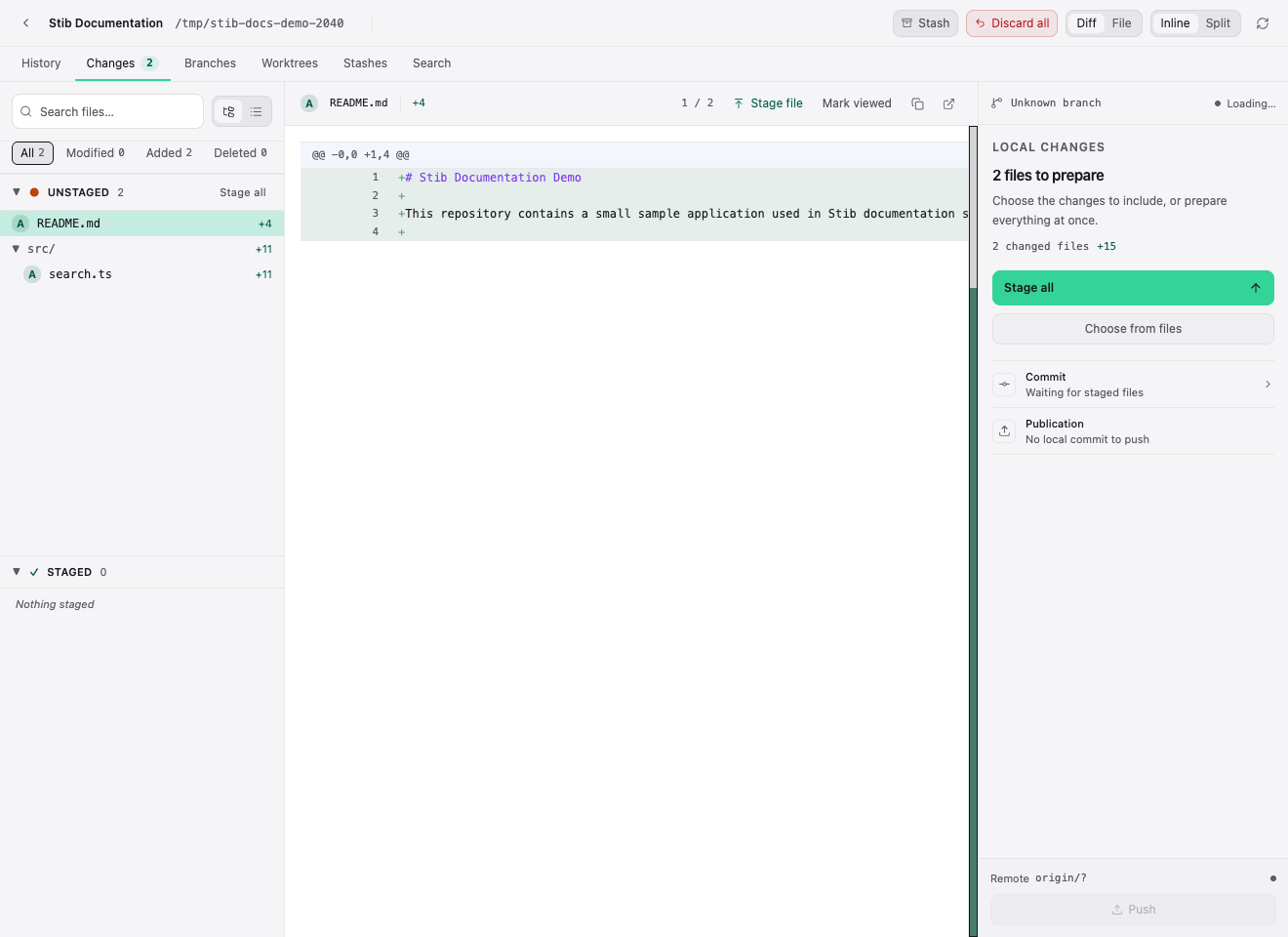
The workspace includes:
- History — commit graph and commit details;
- Changes — staged/unstaged files, hunks, diff, stage actions, and commit preparation;
- Branches — local and remote branch information;
- Worktrees — linked working directories and their branches;
- Stashes — repository stash entries;
- Search — find commits or repository history.
Desktop-only actions can open a file in the preferred editor or reveal the project. Remote operations depend on the repository's configured credentials and provider.
Safe review sequence
- Confirm the repository/worktree shown in the header.
- Refresh changes and inspect untracked, unstaged, and staged files.
- Review the complete diff, including generated or lock files.
- Run the project validation commands.
- Stage deliberately and write a meaningful commit.
- Push or create a review using your normal Git provider workflow.
Stib protects some operations when uncommitted changes would be lost, but it cannot infer whether every generated file is intentional.
Cleanup
Column settings can clean a worktree on transition, and project tools can remove eligible worktrees in bulk. Cleanup may be blocked when a worktree contains uncommitted changes or another process uses it. Review and preserve important work before cleanup; an archive of the card is not a backup of uncommitted files.
Next: Cards and Desktop Features.