Agents
Stib uses Claude Code agents to execute tasks on your cards. When a card enters an active column (conversational, dev, or skill), an agent is spawned to process the card's prompt. You can watch execution in real time, chat with the agent, and manage its lifecycle — all from the agent panel.
Spawning an Agent
An agent starts automatically when a card moves into an active column. You can also trigger an agent manually by sending a message from the chat input on any card.
When an agent starts:
- A new process is created and linked to the card
- The card's prompt, attachments, and context are sent to the agent
- The panel opens to show real-time execution
TIP
If the card already has a previous session, you can choose to resume it or start fresh.
The Agent Panel
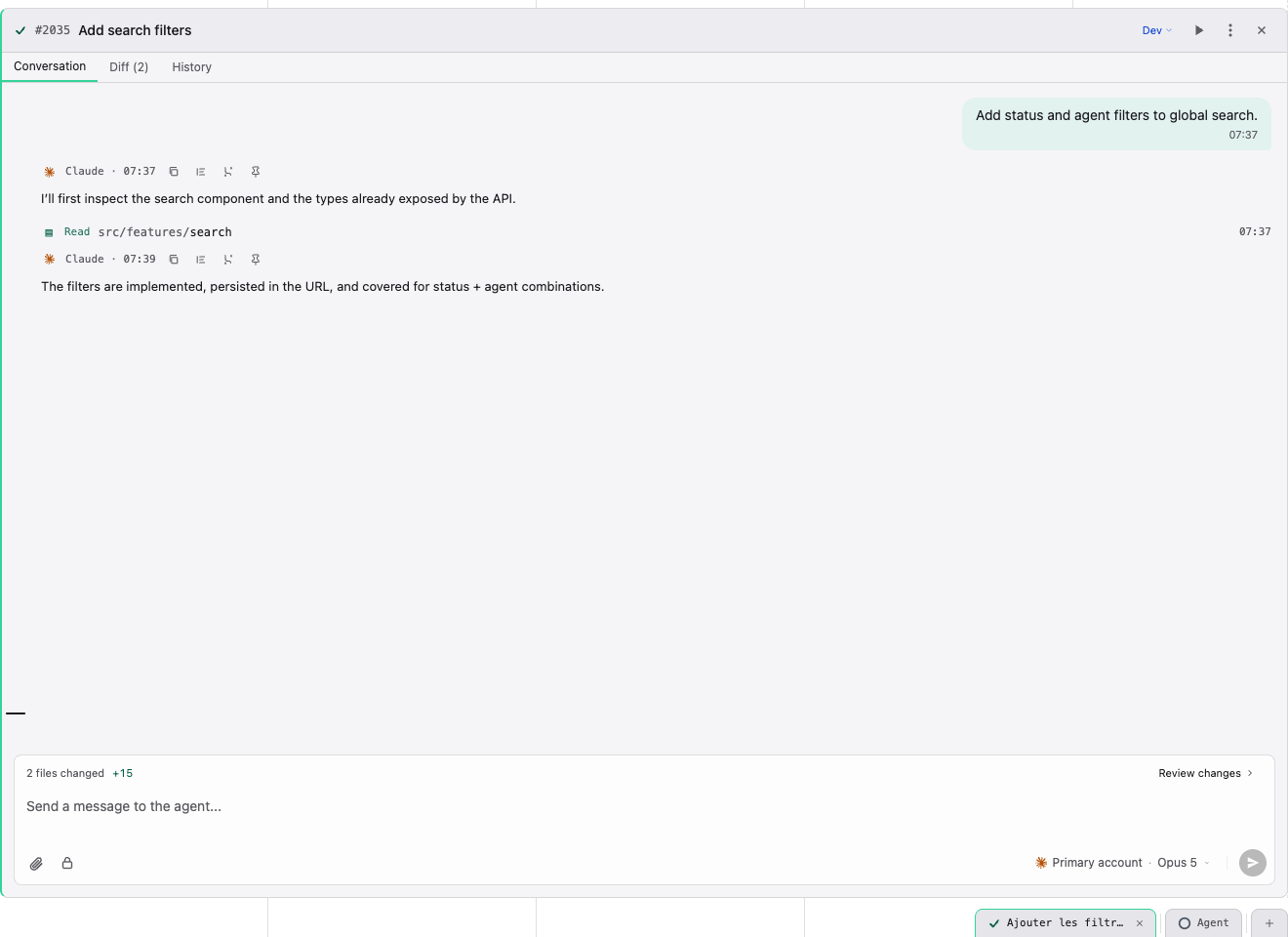
The agent panel is an overlay that displays everything happening with a card's agent. Each card gets its own panel.
Panel Header
The header shows key information at a glance:
| Element | Description |
|---|---|
| Status indicator | Running (spinner), success, error, or idle |
| Card title | Click to minimize the panel |
| Column name | Badge showing which column the card is in |
| Context % | Current context window usage percentage |
| Credential badge | Which API credential the agent is using |
Credential Selector
Use the dropdown in the panel header to switch the API credential at runtime. Options include:
- Inherit Default — uses the project's default credential
- Named credentials with their current usage percentage displayed
Tabs
| Tab | Availability | Content |
|---|---|---|
| Conversation | Always | Real-time agent output and chat |
| Diff | Dev and review columns | File changes made by the agent |
| Summary | When context data exists | Generated summary of the session |
Panel Controls
| Control | Description |
|---|---|
| Auto mode | Toggle automatic pipeline advancement |
| Dev mode | Toggle visibility of thinking blocks (amber icon) |
| Stop | Cancel the running agent (red button, visible when running) |
| Open in Terminal | Open the agent session in your system terminal. Desktop app only — not available in the web version |
| Pop-out | Open the panel in a new browser window |
| Fullscreen | Expand panel to fill the viewport (press Escape to exit) |
| Close | Remove the panel |
Multi-Panel Layout
You can open multiple agent panels simultaneously. Each panel can be individually minimized, restored, or closed. The active panel is highlighted and receives keyboard focus.
Live Execution
When an agent is running, you see its output streamed in real time in the Conversation tab.
Tool Use Indicators
Each tool call (Read, Write, Edit, Bash, Grep, Glob, etc.) is displayed with its name and parameters. You can see exactly what the agent is doing at every step.
Sub-Agent Blocks
When Claude spawns a sub-agent (a nested agent call), it appears as a collapsible block with a purple badge. Expand it to see the sub-agent's messages and result.
Status Line
The bottom of the panel shows a status line with:
- Current column name
- Pipeline progress (step / total)
- Turn count
- Elapsed time
Thinking Blocks
When dev mode is enabled, you can see Claude's internal reasoning (thinking blocks) displayed before each response. This is useful for understanding the agent's decision-making process.
Chatting with the Agent
You can send messages to the agent at any time — during or after execution.
Message Input
Type in the chat input at the bottom of the Conversation tab. Press Enter (or Cmd+Enter) to send, and Shift+Enter for a newline.
@File Mentions
Type @ to open a file picker. Select a file to include its contents in your message, giving the agent targeted context.
Slash Commands
Type / to see available commands. Commands are grouped into built-in commands, skills, and custom commands.
Attachments
Drag and drop files onto the chat input, or click to browse. Images can also be pasted from your clipboard.
Message History
Use Arrow Up and Arrow Down to navigate through your previous messages in the chat input.
Interactive Questions
The agent can ask you questions using a structured UI. Question types include:
- Single-select — radio buttons for choosing one option (submits immediately)
- Multi-select — checkboxes for choosing multiple options
- Text input — free-form "Other" option available on both types
Stopping an Agent
You can cancel a running agent at any time:
| Method | How |
|---|---|
| Keyboard | Press Escape |
| Button | Click the red stop button in the panel header |
When you stop an agent, a graceful SIGTERM signal is sent. If the process doesn't exit within 5 seconds, a forced SIGKILL is applied.
Agent Persistence
Agent sessions are persistent — they survive browser disconnections and page reloads.
- Resume — reopen a panel to continue where you left off with full context
- Session history — browse and resume past sessions on any card
- Database-backed — all session data is stored in the database, not just in memory
INFO
If you close your browser and come back later, your agent sessions are still available. Just open the card's panel to resume.
Context Management
Claude agents have a finite context window. Stib tracks and manages context usage automatically.
Context Percentage
The current context usage is displayed in the panel header as a percentage. This updates in real time as the agent processes messages.
Milestone Summaries
At every 10% boundary (20%, 30%, 40%, ..., 80%), Stib generates a background summary of the session so far. These summaries are used for context relay.
Automatic Relay
When context reaches 90%, Stib automatically spawns a new agent with a comprehensive handoff summary. The new agent receives:
- The objective and current state
- Files modified and decisions made
- Remaining work and blockers
- Relevant context from the previous session
Manual Relay
You can also trigger a relay manually at any time from the error actions, without waiting for the 90% threshold.
WARNING
After a relay, the new agent does not have access to the previous conversation — only the generated summary. Write clear prompts to minimize context loss.
Plan Mode
Plan mode changes how the agent operates: instead of executing actions directly, it generates a plan for your review.
How It Works
- Toggle plan mode on the card (via the panel controls)
- The agent generates a plan based on the card's prompt
- Review the plan and choose an action:
| Action | Description |
|---|---|
| Execute | Run the plan with current context |
| Revise | Provide feedback to modify the plan |
| Reset | Clear context and regenerate the plan from scratch |
Auto Mode
Auto mode enables automatic progression through your pipeline columns.
How It Works
- Toggle auto mode on the card (via panel controls or at card creation)
- When the agent completes in one column, the card automatically moves to the next
- On conversational columns, auto-advance pauses and waits for your approval
- Click "Approve & Continue" to advance the card
TIP
Combine auto mode with a well-configured pipeline to create a fully automated workflow — from planning through development to code review.
Error Handling
When an agent encounters an error, the panel displays the error message with available actions.
Standard Errors
Click Retry to restart the agent. You can also type a message in the chat input before retrying to give the agent additional guidance.
Context Overflow
When context usage reaches 90% or more, the primary action becomes Relay — which spawns a new agent with a summary of the current session.
Keyboard Shortcuts
| Shortcut | Action |
|---|---|
Escape | Stop running agent / exit fullscreen |
Enter or Cmd+Enter | Send message |
Shift+Enter | New line in message |
Arrow Up/Down | Navigate message history in chat input |
Alt+] / Alt+[ | Cycle between open panels |
Cmd/Ctrl+M | Minimize active panel |
Cmd/Ctrl+Shift+M | Minimize all panels |
Cmd/Ctrl+W | Close active panel |
Cmd/Ctrl+E | Toggle all panels visibility |
Next Steps
TIP
Learn how to set up automated pipelines in the Pipeline guide, or explore Git integration in the Git guide.