Skip to content

Projects & Organizations

Stib organizes work around three levels: organizations group team members, projects map to folders on your server (typically Git repositories), and boards provide distinct Kanban pipelines within each project. This hierarchy lets you separate concerns across teams, codebases, and workflows.

Projects

A project in Stib represents a folder on the server — usually a Git repository. Each project has its own boards, cards, and agent sessions.

Creating a Project

Click the "New Project" button in the sidebar to open the creation wizard.

StepAction
1. Select folderBrowse the server filesystem and pick a folder. Git repositories are automatically detected and labeled.
2. ConfigureEnter a name (max 50 characters), an optional description (max 200 characters), and pick a color from the palette. The folder name is suggested automatically.
3. ConfirmReview the path, name, description, color, and Git status, then submit.

After creation, Stib generates a default board named Principal with the standard Kanban columns (Backlog → Plan → Dev → Done) and redirects you to the new project.

TIP

The first time you create a project, an onboarding tip appears to guide you through the interface.

Project Sidebar

The left sidebar lists all projects in the current organization.

  • Reorder — drag and drop projects to change their order
  • Unread badges — each project shows a badge with the count of cards that have unread activity
  • Last-opened project — Stib remembers your last project and re-opens it automatically on next visit

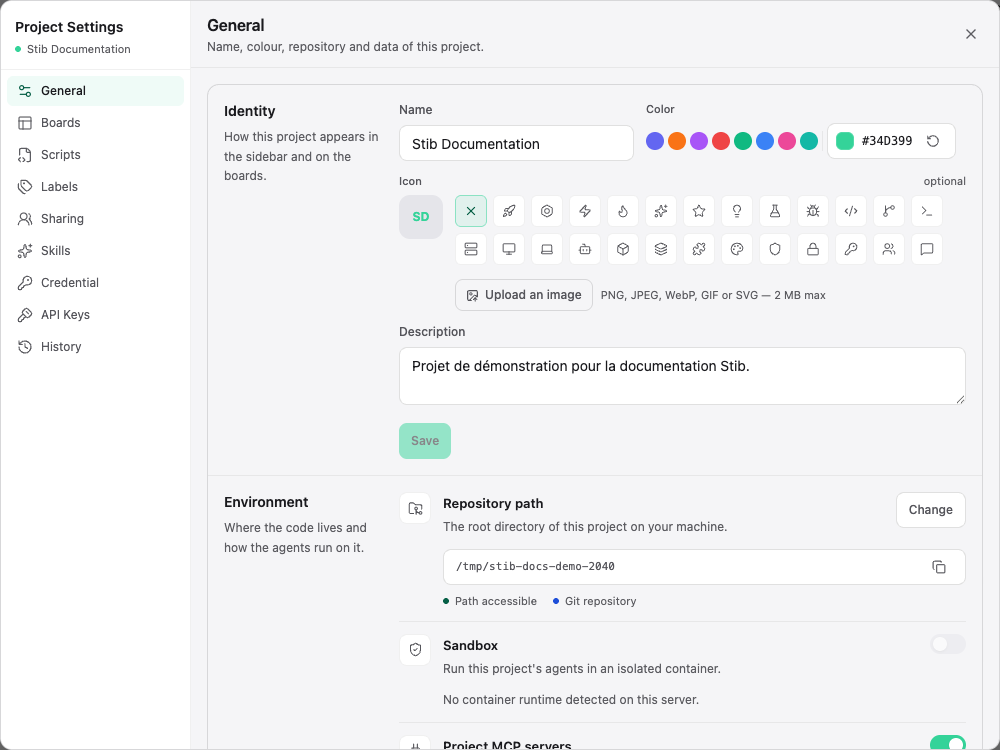
Project Settings

Open project settings from the gear icon in the top bar.

The settings modal has up to 4 tabs (Members only appears when authentication is enabled):

TabPurpose
BoardsCreate, rename, delete, reorder boards. Save board layouts as templates. Toggle BMAD mode.
ScriptsManage project-level scripts that can be run from the interface.
MembersAdd or remove project members and assign roles (owner, editor, reader). Only available when authentication is enabled.
CredentialsSet a project-level default Claude credential.

A separate Export action (below the tabs) lets you download the entire project as a JSON file.

Organizations

Organizations group projects and team members together. They define who can access what and provide shared defaults.

Creating an Organization

A Personal organization is created automatically for every user and cannot be deleted.

To create additional organizations, use the organization selector in the sidebar and click the add button. Organization names can be up to 50 characters — a URL-safe slug is generated automatically.

  • Rename — double-click the organization name or use the dropdown menu to edit inline
  • Delete — only possible when the organization has no projects

WARNING

You cannot delete an organization that still contains projects. Move or delete the projects first.

Managing Members

Organization members can be managed when authentication is enabled.

RoleManage MembersAssign OwnerDelete OrgCreate Projects
Owner
Admin
Member
  • Add members by searching for existing users
  • The last remaining owner cannot be removed or demoted

INFO

Member management is only available when authentication is enabled on the server.

Organization Selector

The organization selector is located in the sidebar.

  • Collapsed sidebar — shows the organization initial with a tooltip
  • Expanded sidebar — shows the full organization name
  • Switching organizations updates the project list to show only that organization's projects
  • Stib remembers your last selected organization and your last project per organization across sessions

Organization Credentials

Set a default Claude credential at the organization level. Projects can override this with their own credential.

The credential inheritance chain is:

Card selection → Project default → Organization default

This means a credential set on a card takes priority, falling back to the project default, then the organization default.

Multiple Boards

Each project can contain multiple boards, each with its own columns, cards, and pipeline configuration.

Board Types

TypeDescriptionUse Case
KanbanStandard board with a column pipelineMain development workflow
CustomBoard without preset columnsSpecialized or ad-hoc workflows

Creating a Board

Create new boards from Project Settings → Boards tab.

  • Enter a name (max 50 characters)
  • Choose a board type
  • For Kanban boards, optionally select a column template

The first board in every project is the default board named Principal, created automatically with standard Kanban columns.

Board Navigation

  • Desktop — board selector tabs appear in the top bar
  • Mobile — a dropdown selector replaces the tabs
  • The selector only appears when the project has 2 or more boards
  • Stib remembers which board you last viewed per project

Managing Boards

ActionHowNotes
RenameDouble-click the board name or edit in settingsMax 50 characters
DeleteFrom settings, click deleteDefault board cannot be deleted. All cards and columns are removed.
ReorderDrag boards in settingsDefault board always stays at position 0
Save as templateFrom settings, click save as templateCaptures column configuration for reuse
BMAD toggleSwitch in settingsEnable or disable BMAD mode per board

WARNING

Deleting a board removes all its columns and cards permanently.

Board Templates

Board templates capture a board's column layout for reuse when creating new Kanban boards.

  • Save any board's column configuration as a template
  • Default template — mark one template with ★ so it is used automatically for new boards
  • Templates store column names, types, positions, and settings
  • Manage templates from Project Settings → Boards tab

Next Steps

TIP

Learn how to automate card flow in the Pipeline guide, or see how Git integration works per card in the Git Integration guide.