
Settings
Settings are divided by ownership. Search within the global dialog instead of browsing every section.
User settings
These preferences belong to the signed-in user and follow that user across clients connected to the same server.
| Section | Examples |
|---|---|
| General | Number/width of open panels, mobile connection, personal export |
| Appearance | Language, theme, colors, fonts, syntax/diff display, density, scale, contrast, animation |
| Cards | ID, labels, status, branches, timing, context, and preview density |
| Columns | Count/type/icon/color behavior at responsive sizes |
| Notifications | Events, sound volume and mute, custom sounds |
| Conversation | Reasoning, tools, timestamps, grouping, spellcheck |
| Shortcuts | Keyboard command bindings |
| Editor & CLI | Preferred editor/terminal and custom executable paths |
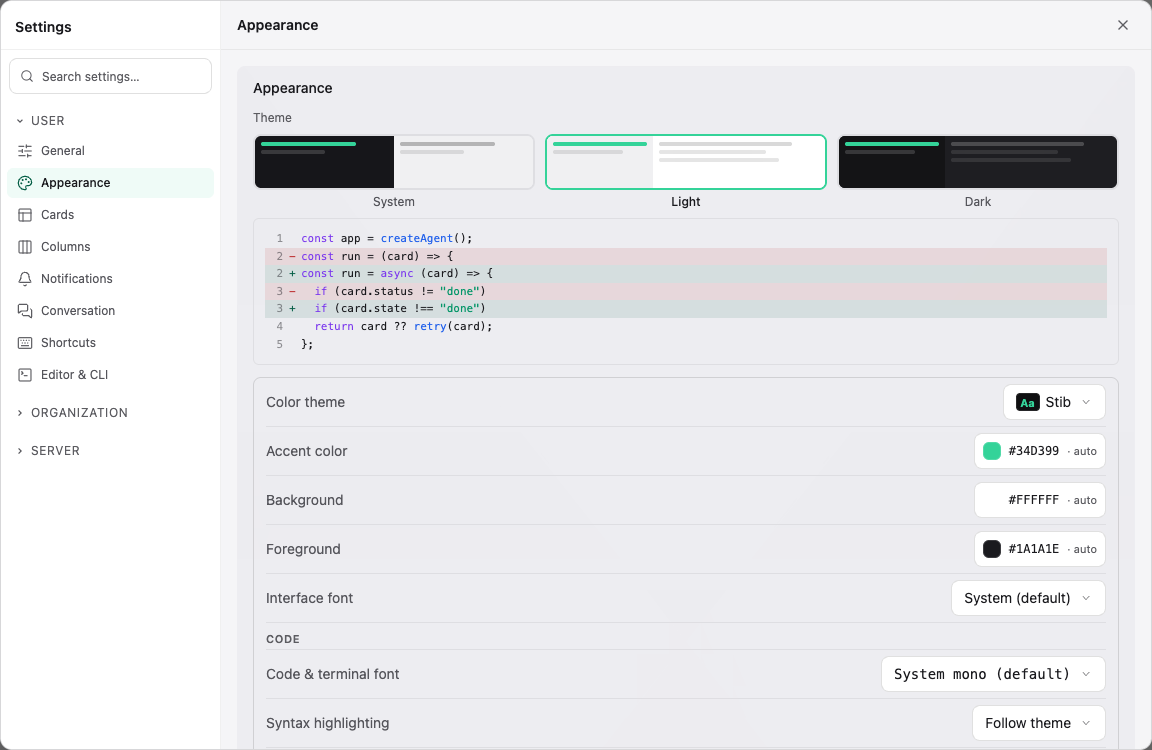
Desktop editor/terminal detection is local to the client machine even though the preference is saved to the user profile.
Organization settings
The organization scope contains General, Members, Labels, Credential, API Keys, Audit, and Audit Webhook. Only authorized organization members can change them. Use organization credentials and labels when several projects should share them; use project scope for exceptions.
Server settings
The server scope contains General, Credentials, Users, Mobile notifications, Authentication, Boards, API Keys, Skills, Integrations, Labels, Backup, Log Export, Encryption, and Monitoring. Most sections require server administration privileges.
Monitoring
Server admins see the load of the machine running stib — processor, memory, disk and network — left of the Agents button in the title bar. Clicking it opens the detail: the recent history of each metric, the load average, the volume holding stib's data with its throughput, both network directions, and what each running agent costs (CPU and memory of its whole process tree). A sandboxed agent is listed without figures: its processes run in a container the host does not see into. An admin sees by name only the cards the Agents button shows them; the others are summed into one "other agents" line.
Monitoring (in the Operations group) sets it up for the whole server:
- turn it on or off, and pick the style: Graph, Gauge, Text or Icon — the icon only unfolds when a threshold is crossed;
- choose which metrics the bar shows and in which order, the volume and the network interface to measure;
- set the warning and critical thresholds, or turn them off so nothing turns amber or red;
- set the interval between two readings: 1, 2 or 5 seconds, or a custom value up to 5 minutes. The chart keeps 60 readings, so its window follows the interval.
In a Docker container the readings describe the container and its memory limit. On the desktop app, the server is the computer itself.
See Server Configuration before changing encryption, authentication, backups, private-network integration access, or update settings.
Project settings
Open the project menu, then Project settings. Sections are General, Boards, Git (Git repositories only), Integrations, Scripts, Labels, Sharing, Skills, Credential, API Keys, and History. Integrations holds the project's own provider connections, each pinned to a remote target, and lists the server connections read-only. The Skills section is read-only — skills are enabled server-wide — except for the project's maximum agent scope.
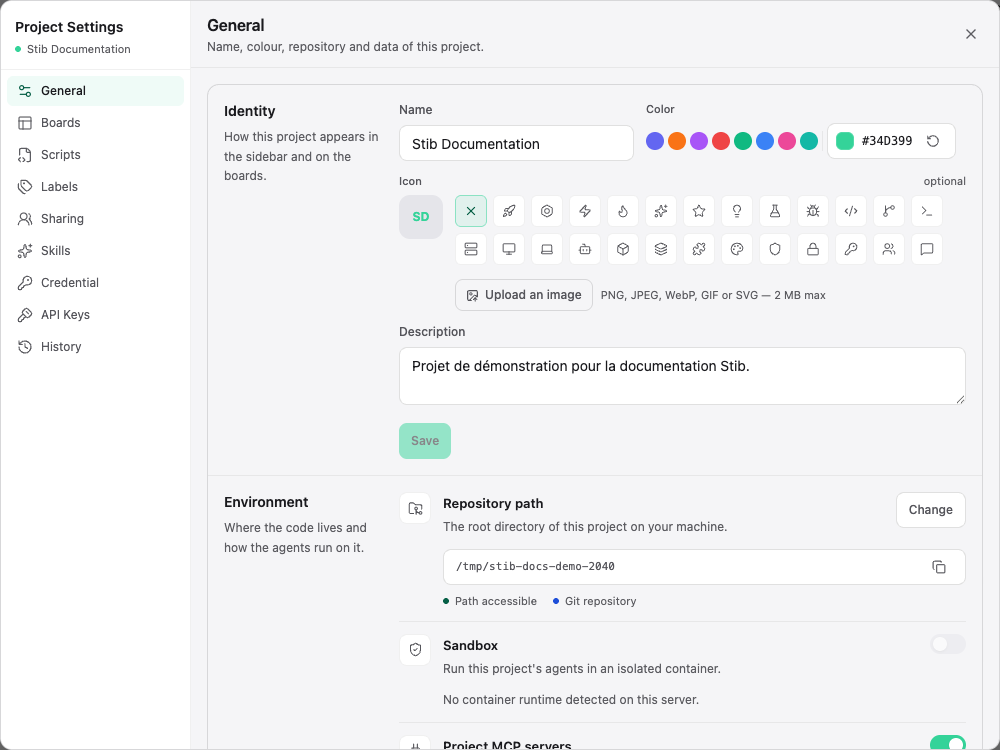
The Boards section also holds the Private boards option (Max plan): allow them and set the cap per member (1 to 5). Admins see there the members' private boards — name, owner, activity — and can delete them, or convert an orphaned one to a shared board.
Project changes can affect running agents, repository paths, integration sync, and future cards. The History section helps distinguish a configuration change from an agent-side issue.
Board and column settings
Board settings define workflow defaults, agent/model selection, templates, and optional integration attachment. Column settings define stage behavior across General, Agent, Automations, Webhooks, Sort, and Advanced.
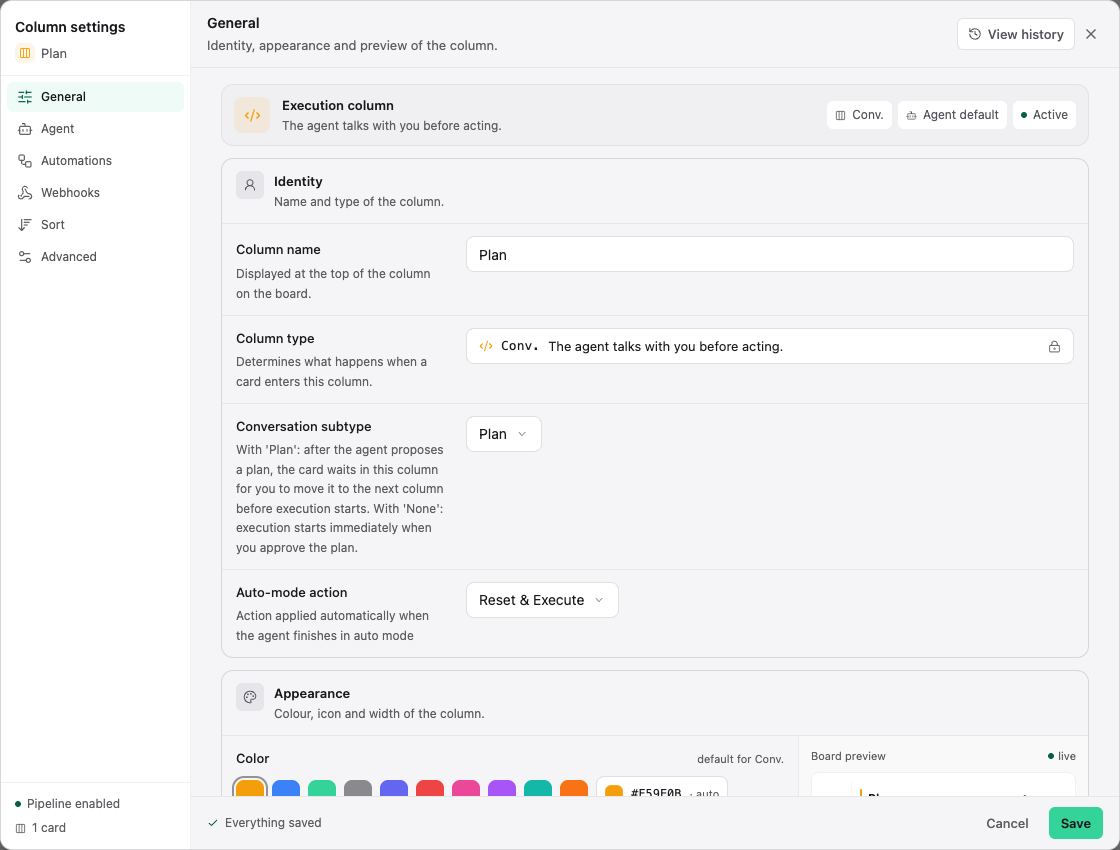
Column type is structural and is not treated like a cosmetic name change. When a workflow needs a different execution type, create or replace the column deliberately and migrate cards after reviewing automation.
Saving and inheritance
Many editors save immediately or report Everything saved; others have an explicit Save button. Do not close a dialog while it reports unsaved changes.
Defaults generally flow from server/organization to project, board, column, and card, but not every setting participates in every level. The interface shows the effective value and source where inheritance matters.
Next: Projects & Organizations and Server Configuration.